Run Your Own AI at Home and Access It Anywhere with LM Studio and LM Link
Run an AI model on your home PC or homelab with LM Studio, connect it with LM Link, and use it from an iPhone, iPad, laptop, or work PC without opening ports.

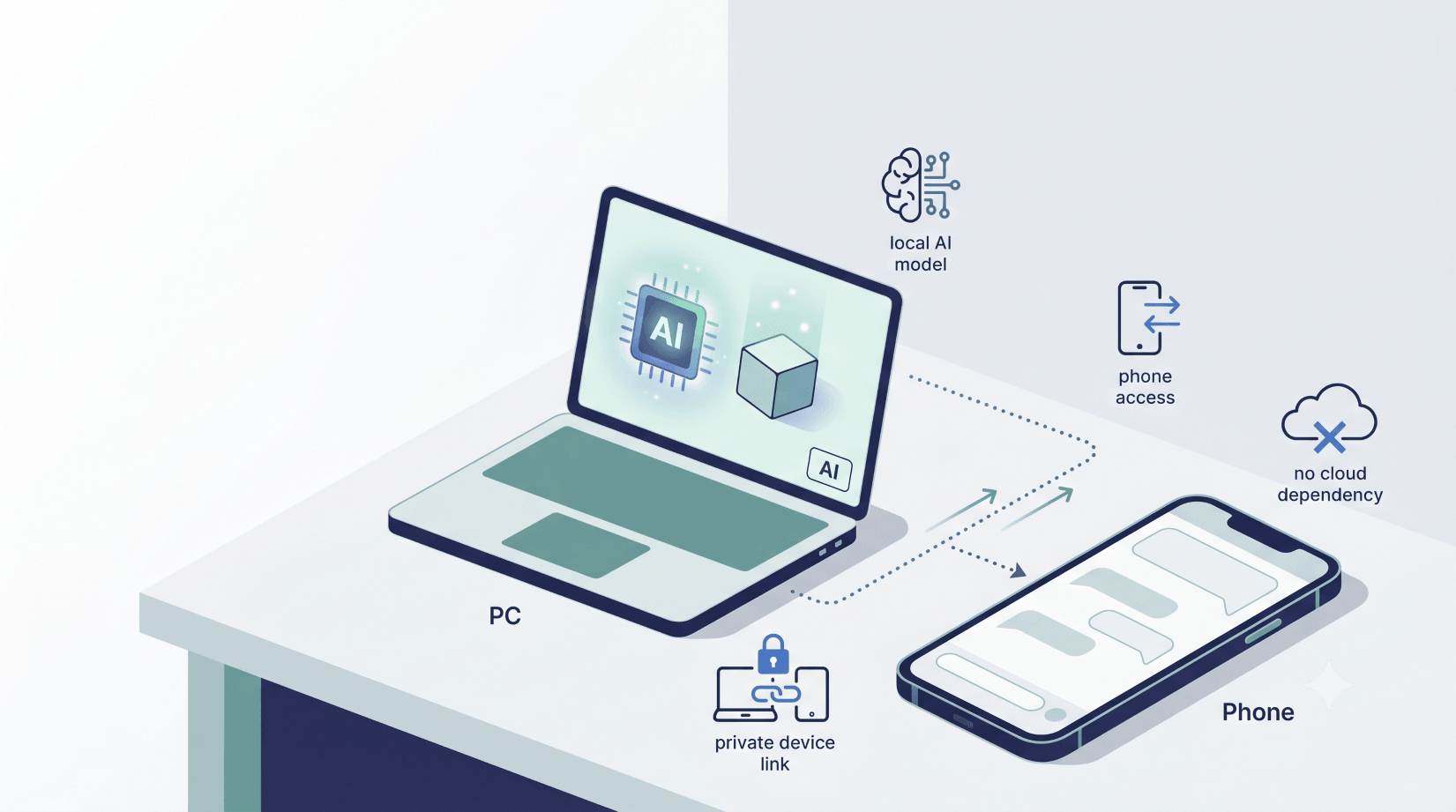
Last time, I showed you how to run an LLM on your PC. That was the base: download a model, open LM Studio, ask it questions, and keep everything on your own machine.
This time, we are making it much more useful.
We are going to keep the AI model running on a computer at home, then use it from somewhere else. That could be your iPhone, your iPad, your laptop, or a work machine signed in to the same LM Link.
Your PC, Mac, mini PC, or homelab box does the heavy work. The remote device is just where you talk to it.
That means you can be on the sofa, outside the house, or away from your desk and still ask your own AI for help. No paid API key. No ChatGPT subscription for small jobs. No public web dashboard sitting on your home internet.
The idea is simple:
- LM Studio runs the model on your computer.
- LM Link connects your devices.
- Locally AI by LM Studio lets your iPhone or iPad talk to that model.
- LM Studio on another computer lets your laptop or work PC use the same linked model.
The first time it works, it feels oddly satisfying. You type into your iPhone or another computer, the machine at home thinks for a moment, and the answer comes back where you are.
Quick Answer
To run your own AI on a home PC or homelab and use it remotely:
- Install LM Studio on your computer.
- Download a small model, such as Gemma 4 E4B.
- Create an LM Link in LM Studio.
- On mobile, install Locally AI by LM Studio on your iPhone or iPad.
- On another computer, install LM Studio and join the same Link.
- Choose the remote model and send a prompt.
Your remote device is not running the large model. Your home machine is. The iPhone, iPad, laptop, or work PC is just a clean way to reach it.
Why Bother Doing This?
Because running an LLM on a PC is useful, but it still leaves the model trapped at the desk.
I do not always want to sit at the computer just to ask a quick question. Sometimes I want to rewrite a message before sending it. Sometimes I want to paste a rough note and ask for a cleaner version. Sometimes I want to ask something about a log, a home server, or a bit of code while I am nowhere near the keyboard.
That is where this setup makes sense.
It gives you a private AI assistant that runs on hardware you control, but feels closer to a mobile app. Not as polished as ChatGPT. Not as smart as the strongest hosted models. Still useful, though, and that is the point.
For small daily jobs, "useful and private" beats "perfect and somewhere else".
What Free Means Here
Free does not mean the hardware costs nothing. You still need a computer, and that computer uses electricity.
Free means there is no hosted AI API bill for each prompt. You are running the model locally on your own machine. LM Studio and Locally AI are free to install as I write this, and the whole point of the setup is that you are not paying a cloud model every time you ask a simple question.
That is the appeal. Once it is running, the next prompt does not feel like a meter is ticking.
My Setup
For my setup, I used a Ryzen 7 7840HS mini PC with 32GB RAM as the host. It is not a huge GPU server. It is a small box that can stay on, run a sensible model, and sit quietly in the background.
That kind of machine is a good fit for this project:
- It has enough memory for smaller local models.
- It does not need to be the machine in your hands.
- It can stay plugged in while your remote devices come and go.
- It is easier to leave running than a main desktop with fans and monitors.
You can do the same thing with a gaming PC, a Mac, a Linux workstation, or a homelab box. The shape matters more than the brand. One machine hosts the model. Your phone connects to it.
What You Need
Before you start, have these ready:
- A computer that can run LM Studio.
- A free LM Studio account.
- Locally AI by LM Studio on your iPhone or iPad, or LM Studio on another computer.
- One small local model downloaded in LM Studio.
- A host machine that will stay awake while you use it.
For the first model, do not overthink it. Start with Gemma 4 E4B if it is available for your machine. It is light enough for a first run and good enough for normal everyday prompts.
If your machine has more memory, try Gemma 4 12B Unified later. If you have a proper workstation or GPU box, then the bigger models become more interesting.
Start small. Prove the remote setup works. Then upgrade.
Step 1: Install LM Studio on the Host Computer
Download LM Studio from lmstudio.ai/download, install it, and sign in.
The host computer is the machine that will run the AI model. It can be your main PC, but I prefer a machine that can stay on without getting in the way.
Open LM Studio and check that you can reach the model search screen. If you have used LM Studio before, you can skip straight to loading a model.
Step 2: Download and Load a Model
Search for a small instruct model. For this guide, I would start with:
Gemma 4 E4B
If your machine has more headroom, Gemma 4 12B QAT is a sensible step up. The screenshot below shows the LM Studio model browser with the 12B QAT download option.
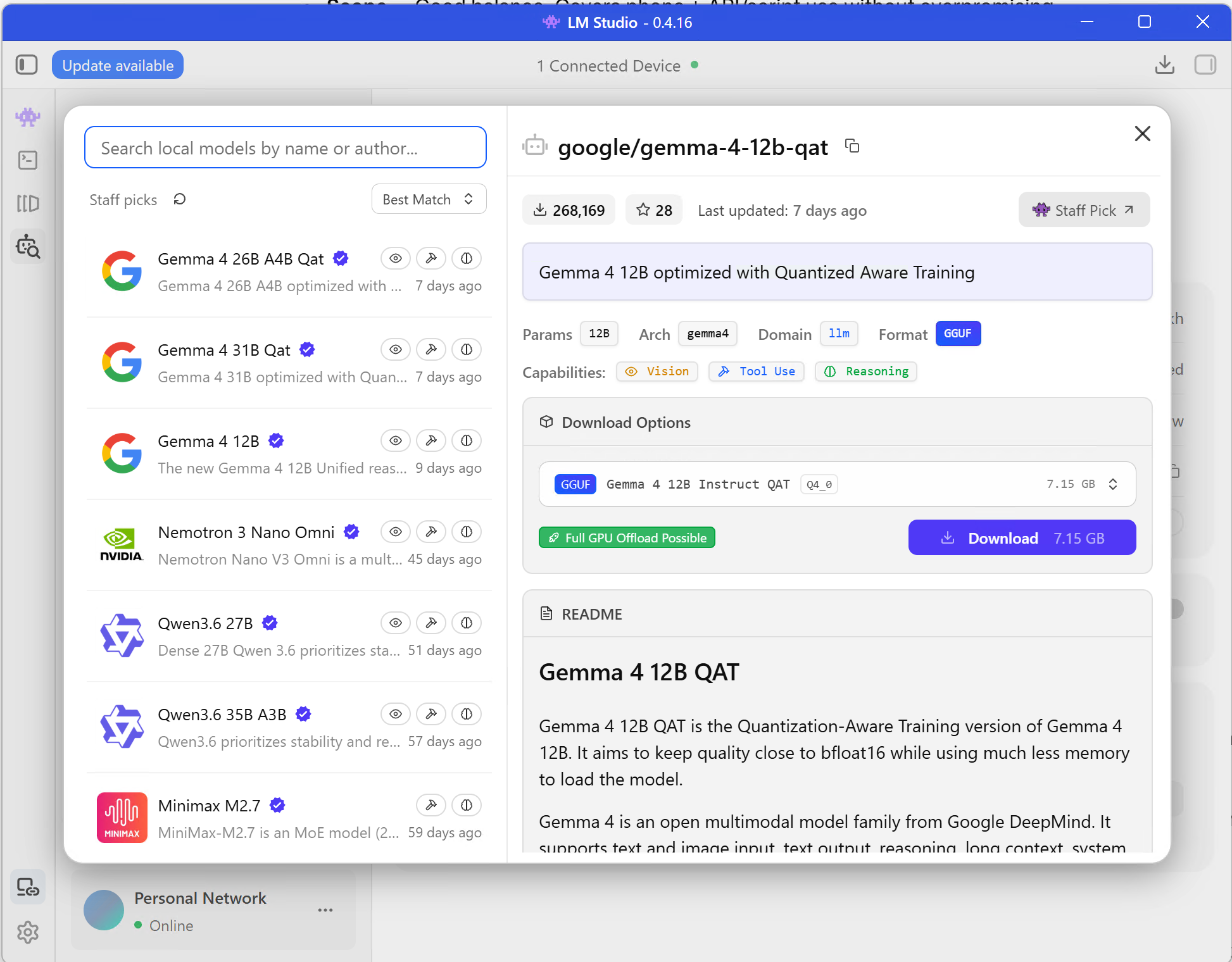
Load the model and ask a quick test question inside LM Studio:
Explain DNS like I am setting up my first homelab.
If it answers, the local part works.
Do not tune settings yet. Do not jump between ten model files. Do not compare every quantisation. That is how a quick project turns into a lost evening.
Get one model answering first.
Step 3: Create an LM Link
Open LM Link in LM Studio and create a Link for your devices.
LM Link is what lets another device use a model loaded on this host machine. LM Studio describes it as a private connection built on Tailscale mesh VPNs. The useful part is that you do not need to open ports on your router or expose a web UI to the public internet.
Keep LM Studio open and keep the model loaded.
At this point, your computer is the AI host.
In my test, LM Studio showed the iPhone as a connected network device inside LM Link.
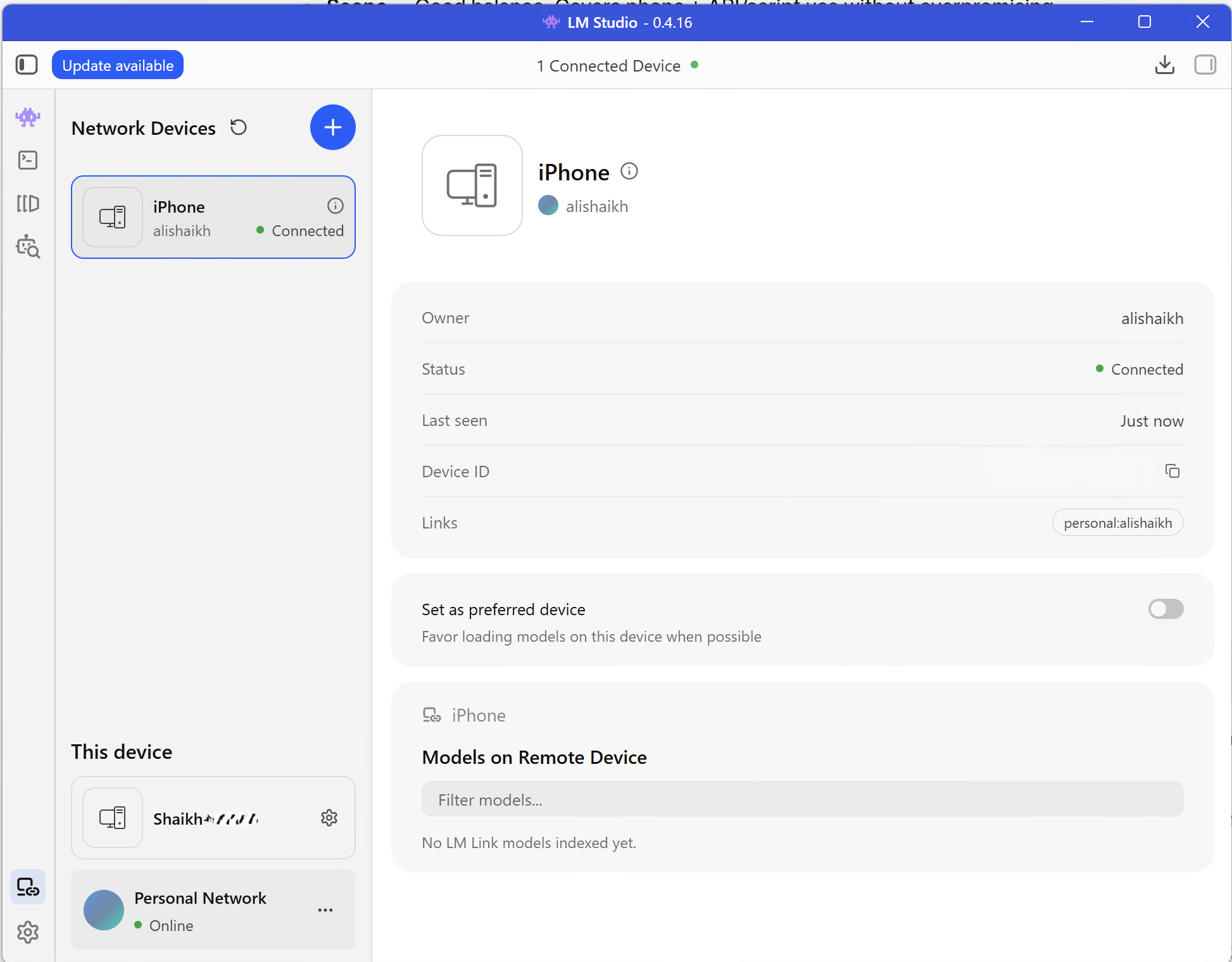
Step 4: Connect From Your iPhone, iPad, or Another Computer
On iPhone or iPad, install Locally AI by LM Studio from the App Store.
Sign in with the same LM Studio account you used on the host computer. Your linked computer should appear in the app when it is online.
Choose the model running on your computer, then send a simple prompt:
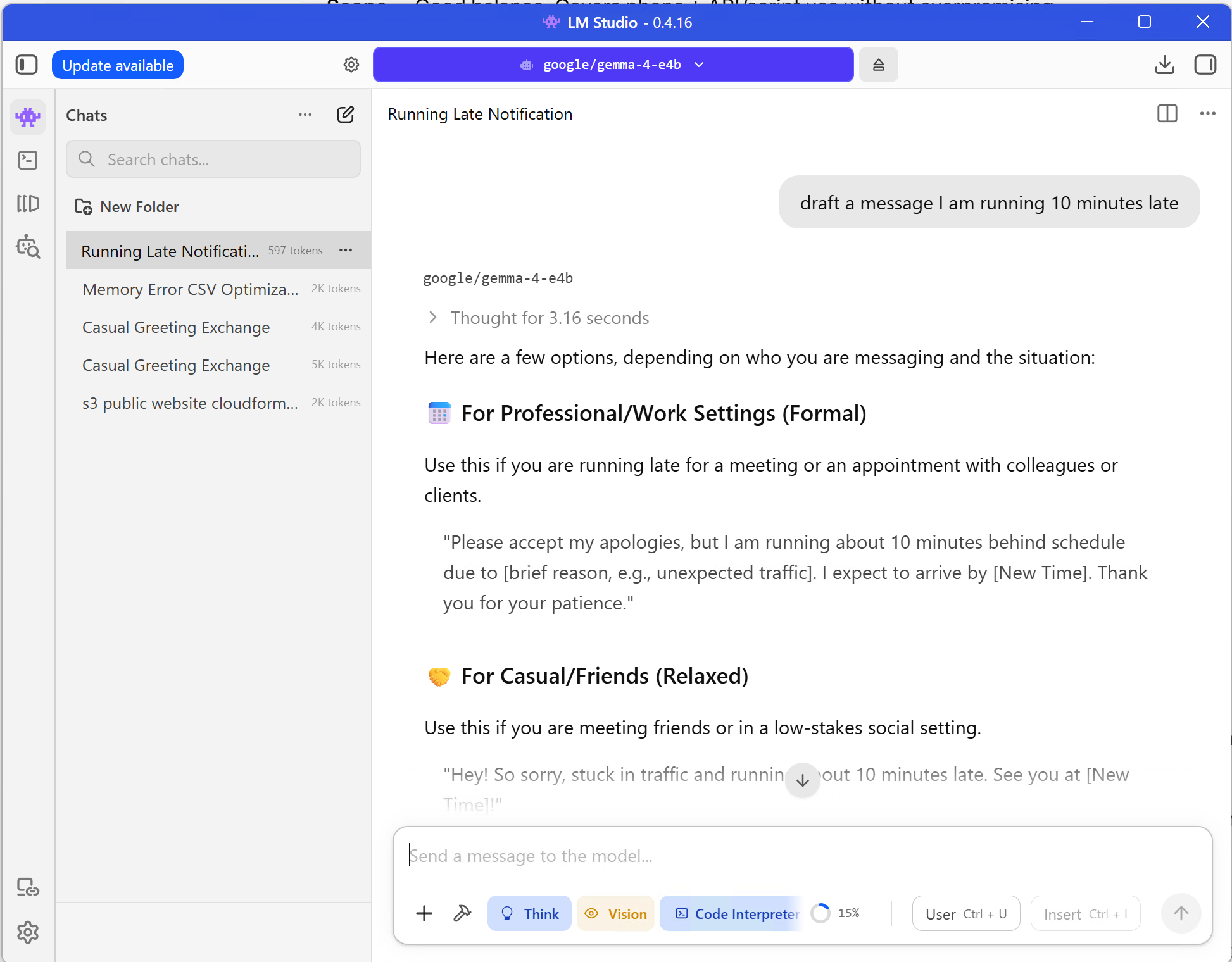
Write a friendly reply saying I am running 10 minutes late.
If the answer appears on your mobile device, that path works.
On a laptop, desktop, or work PC, install LM Studio instead. Sign in, join the same Link, then choose the remote model from the model loader. That second computer now talks to the model running at home.
You are now using your own AI from a remote device while the model runs on your home machine.
Here is the same kind of quick real-world prompt running against Gemma 4 E4B in LM Studio.
Step 5: Prove the Remote Device Is Using the Host
Do this before you get too excited.
Open Task Manager on Windows, Activity Monitor on macOS, or a process monitor on Linux. Send another prompt from the iPhone, iPad, laptop, or work PC and watch the host machine.
You should see CPU, GPU, or memory activity when the remote device sends the prompt.
If nothing changes, check which model is selected on the remote device. For this project, the remote device should be the client and the home computer should be the engine.
What I Would Use This For
This is not where I would ask a model to redesign a whole production system. It is a pocket tool for smaller jobs.
Good uses:
- Clean up a rough WhatsApp or email reply.
- Summarise a note without sending it to a hosted model.
- Explain an error message from your own machine.
- Rewrite a paragraph before posting it.
- Turn a quick idea into a short outline.
- Ask for a shell command and then check it properly before running it.
- Draft titles, captions, and short descriptions.
That might sound basic. Honestly, basic is where local AI is strongest.
The small private jobs are the ones where I do not need a giant hosted model. I just need something that can help me write, sort, explain, or rephrase without making the task bigger than it needs to be.
Remote Prompts Worth Saving
Once the remote setup works, save a few prompts so you are not typing the same thing every time.
For quick replies:
Rewrite this so it sounds friendly, short, and natural:
[paste message]
For rough notes:
Turn these rough notes into a clean checklist:
[paste notes]
For homelab errors:
Explain this error in plain English and suggest the first three checks:
[paste error]
For code snippets:
Review this small snippet for obvious mistakes. Keep the answer short:
[paste code]
These are the jobs where the setup feels natural. You are not asking the local model to be a genius. You are asking it to save you a few minutes.
Why Not Just Expose a Web UI?
You could run a local web UI and expose it through a VPN or reverse proxy. That works, and for some homelab setups it is a fine route.
For this project, I do not want the extra moving parts.
Once you expose a web app, you need to think about login, HTTPS, firewall rules, updates, and whether you accidentally made something public. It is manageable, but it is not the five-minute version.
LM Link keeps the setup focused. Your model stays on your machine. Your remote device reaches it through the Link. You do not have to turn a local AI experiment into a public service.
Use the Same Local AI From Your Laptop or Work PC
The mobile app is the fun part, but LM Studio also gives you an OpenAI-compatible local API.
By default, LM Studio uses:
http://localhost:1234
Check the loaded models:
curl http://localhost:1234/v1/models
Then send a simple chat request:
curl http://localhost:1234/v1/chat/completions \
  -H "Content-Type: application/json" \
  -d '{
    "model": "your-loaded-model-id",
    "messages": [
      {"role": "user", "content": "Give me three ideas for testing my local AI setup."}
    ]
  }'
Copy the model ID from /v1/models. Do not guess it from the display name.
This is where the project starts to grow. First the mobile app works. Then your laptop scripts work. Then your editor can point at the same local model. You end up with one AI setup that serves more than one device.
Common Problems and Fixes
| Problem | Likely cause | Fix |
|---|---|---|
| The remote device cannot see the computer | The host is asleep or not linked | Wake the host, open LM Studio, and check LM Link |
| The model is slow | The model is too large for the machine | Start with Gemma 4 E4B or another small instruct model |
| The remote device answers but the PC is idle | It may be using a local model | Select the remote model from the linked computer |
| The model vanished | It was unloaded on the host | Load the model again in LM Studio |
| API calls fail | Wrong model ID | Run /v1/models and copy the exact ID |
| It worked once, then stopped | The host went to sleep | Change sleep settings on the host machine |
That table is the boring bit, but it is the part that saves time.
A Few Settings I Would Change
If you plan to use this for more than a quick demo:
- Stop the host machine from sleeping too quickly.
- Keep the first model small until the workflow feels solid.
- Give the host machine a clear name in LM Studio.
- Keep one model loaded while testing from the remote device.
- Take a screenshot of the remote response and the host activity for your notes.
The screenshot is not just for showing off. It proves the setup is doing what you think it is doing.
Who This Setup Is Actually For
This setup is not for everyone, and that is fine.
It is worth doing if you already have a computer that can stay on for a while and you want a private AI helper on your iPhone, iPad, laptop, or work PC for small jobs. That means messages, notes, quick explanations, short summaries, rough ideas, and simple code checks.
It is also worth doing if you do not like exposing random web dashboards from your home network. LM Link keeps the setup much cleaner than opening a port and hoping you configured everything properly.
I would skip it if you need the smartest possible model all the time. A small local model on a mini PC will not beat Claude, ChatGPT, or Gemini at hard reasoning, large code changes, or long research. I would also skip it if your host machine is usually switched off, asleep, or packed away in a bag.
The sweet spot is simple: your computer is already there, your remote device is already in your hand or on your desk, and you want a private assistant for the small bits of thinking and writing that come up during the day.
What to Check Before Calling It Done
Before you call the setup finished, capture proof while you test it:
- A screenshot of LM Studio with the model loaded.
- A screenshot of Locally AI answering from the iPhone, or LM Studio answering from another computer.
- A screenshot of LM Link showing the remote device connected.
- The host machine specs.
- The model name.
- The first prompt you tested.
- Whether it worked first time or needed a fix.
That proof is useful later when something stops working. It also gives you a small record of which model and machine actually worked, instead of relying on memory.
Final Take
Running an LLM on a PC is cool. Using that same LLM from your iPhone, iPad, laptop, or work PC is the part that makes it feel like something you might keep.
The setup is short:
- Install LM Studio.
- Load a small model.
- Link your computer.
- Sign in from the mobile app or another LM Studio desktop.
- Ask your own AI a question from the remote device.
Five minutes later, your home computer is doing the thinking and your remote device is where you talk to it.
That is a real upgrade from "I can run a model on my PC". Now it is your own AI, reachable from wherever you are.
Sources
- LM Studio
- LM Studio download
- LM Link overview
- Using LM Link with the REST API
- LM Studio OpenAI-compatible endpoints
- Gemma 4 model card, Google AI for Developers
- Locally AI by LM Studio, App Store
Related on alishaikh.me
- Run a Local LLM with LM Studio - the first guide in this mini-series, covering the basic local LM Studio setup on a PC.
- How to Run Local LLMs with Ollama: Quick Setup Guide - a CLI-first option if you prefer Ollama over a desktop app.
- Creating Simple AI Agents: A Beginner's Guide - a practical next step once you have a local model running.
- How AI Models Process Text: Understanding Tokens in AI and LLMs with TikTokenizer - useful background for understanding why prompts, context, and token limits matter.
- Secure Self-Hosted OpenClaw AI Assistant: Step-by-Step Proxmox Template Guide with Tailscale Integration - a related self-hosted AI project on a Proxmox homelab.
- Docker's MCP Catalog and Toolkit: What It Is and Why It Matters - connects nicely if you are thinking about local models, tools, and agents.